
SVG Files for Laser Cutting: 5 Checks Before You Press Start
SVG Files for Laser Cutting: 5 Checks Before You Press Start
- Kostiantyn Soloviei
When you work with SVG files for laser cutting, a bad file is easy to miss. You download an SVG, drop it into your software, hit start, and ten minutes later you are holding a box that does not close. Or a heart the size of a coin. Everybody has done this at least once. Most of the time the laser is fine. The file is the problem.
This guide is about SVG files for laser cutting: what an SVG really is, what to look at before you cut, and how to tell a file that will behave from one that will eat a sheet of plywood.
What an SVG file is, in plain words
An SVG is a vector file. Instead of pixels, it stores lines, curves and shapes as math. Your laser software reads those lines and sends the laser along them. That is why you can enlarge an SVG as much as you like and the edges stay sharp, and why a JPG or PNG cannot be cut directly: it has no lines, only dots.
You will also run into DXF files. DXF is an older vector format that comes from CAD programs. Both work. If your software opens either one, SVG is usually the easier pick, because it handles colours better and a lot of designers use colour to separate “cut here” from “engrave this”. DXF is handy when a file came out of CAD, or when an SVG keeps coming in at the wrong size.
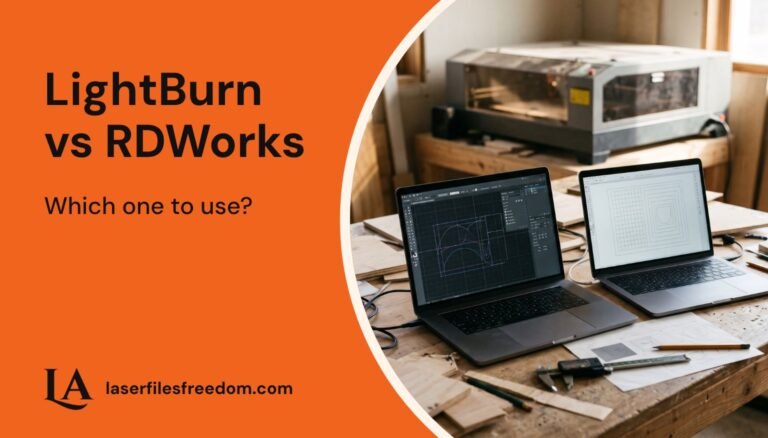
Glowforge, xTool Creative Space and LightBurn all open SVG files. Not sure which software you need? We compared the common options in what software is used for laser cutting, and LightBurn vs RDWorks if you run a CO2 machine.
Five things to check in SVG files for laser cutting before you press start
1. The real size
Open the file and look at the dimensions in millimeters or inches before anything else. Illustrator and Inkscape count a pixel differently, so a file can arrive at 75% or 133% of the size the designer meant. For a decorative cutout that is annoying. For a box with joints it ruins the fit. A good listing tells you the finished size, so you can compare it with what you see on screen.
2. Closed shapes
A line you want to cut through should form a closed shape. If there is a tiny gap in a corner, the laser still cuts, but the piece stays attached to the sheet and you end up prying it out. Zoom in on corners and curves, because gaps like to hide there.
3. Doubled lines
Sometimes two identical lines sit exactly on top of each other. The laser then cuts the same path twice. The wood chars, the edge goes black, and thin parts can burn through. LightBurn has a delete-duplicates command and most other programs have something similar. Use it.
4. Text turned into outlines
If a file has live text and your computer does not have that font, the software swaps in another one and your lettering changes. Convert text to paths (outlines) before you save or send the file.
5. Colours and line thickness
Many designers use one colour for cutting and another for engraving. The colours only mean something once you give each of them a job in your software: cut, engrave or score. Check that before the first run. For a clean cut, use a hairline stroke rather than a thick one.
Material thickness and kerf
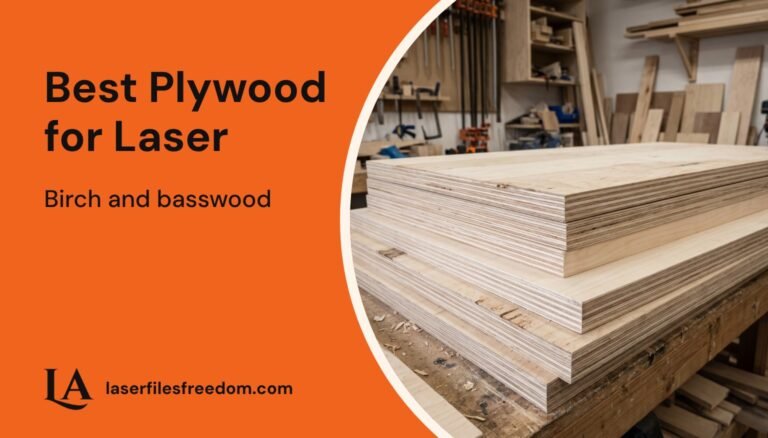
A file drawn for 3 mm plywood will not fit 3.2 mm plywood, and the laser also removes a hair of material along every line. That is the kerf, and together with the thickness it decides how tight a joint feels. If your pieces fit too tightly or fall apart, read how to fix laser cut joints that are too tight or too loose. If you are still choosing a sheet, our notes on the best plywood for laser cutting will save you a few test cuts. And if the vocabulary is new, essential laser cutting terms explains kerf and the rest.
Free or paid SVG files for laser cutting?
Free SVG files for laser cutting are great for practice and for simple shapes. We have nothing against them, and we wrote a separate piece on where to find free laser cut SVG files and how to check they are cut-ready.
Where free files tend to let you down:
- The licence is unclear, or it is personal use only, which matters the moment you sell what you make.
- There is no size information and no note about material thickness.
- The joints were never tested on a real machine.
- You get a single format, so if it does not open in your software, you are stuck.
With a paid file you are mostly paying for the testing, the correct sizes and a clear licence. Our files come in SVG, AI, PDF, DXF and CDR, so they open in whatever software you use, and commercial use is included. You can browse all laser cut files, or start with something practical that has joints and cuts quickly, like the desk organizer crate set or the hippo pencil holder. More boxes and organizers are in the storage boxes and organizers category.
A quick test before you cut any new SVG file
Take a piece of cardboard or a thin plywood offcut and cut one small part, or the whole file if it is small. Measure it with a ruler, check one joint, and see whether the lines cut through at your speed and power. Five minutes of testing costs far less than a ruined sheet of birch plywood.
Questions we get a lot
Can I cut a JPG or PNG?
Not directly. Those are pixel images. They are fine for engraving a picture, but a laser needs vector lines to cut. You would have to trace the image into a vector first, and the result is usually only as good as the original.
SVG or DXF, which one should I use?
Take SVG if your software opens it. Switch to DXF if the SVG scale keeps going wrong or the file came from CAD.
Why does my SVG open at the wrong size?
Different programs use different resolution settings (72 or 96 pixels per inch), so the same file can come out a quarter or a third off. Measure one known part, or use the dimensions from the product description, and scale the whole design to match.
Can I sell things I cut from a downloaded file?
That depends entirely on the licence. A file marked personal use only does not allow it. Files with a commercial licence do, usually with conditions such as not reselling the file itself. Keep the licence text or your receipt.
Why are my pieces not dropping out after the cut?
Usually it is open paths, doubled lines, or power that is too low for the material. Check the file first, then run a test cut with a bit more power or a slower speed. If the laser struggles to get through at all, see why a laser is not cutting through plywood.
That is really all there is to it. Check the size, check the lines, test once, then cut. If you would rather start with SVG files for laser cutting made for exactly this, have a look at our collection.